June 13

Deploying an ASP.NET Project From a Multi-Project Solution Using GitHub Actions

I've been studying for the AZ-400: Designing and Implementing Microsoft DevOps Solutions exam. As part of the preparation for that exam, you build a bunch of CI/CD pipelines. Every example given has a GitHub repo with 1 solution and 1 web project. That's great for demoware, but we aren't writing demoware.

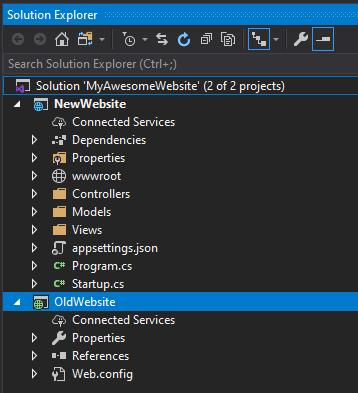
Let's say you have a website you wrote about 10 years ago using an earlier version of ASP.NET (read that as non-.NET Core) that you want to modernize/revamp. The approach I took was to create a new ASP.NET Core web project next to the older version of the website in a single solution.

The idea is that I could take my time moving parts from the old project to the new and still have a running version of the old website. Putting my DevOps hat on, I wanted to create a CI/CD pipeline using GitHub Actions. I started building the pipeline using the examples available in the Azure/webapps-deploy repo. I got the pipeline to successfully execute, or at least run with no errors. It was deploying the entire solution directory! Well, that ain't gonna work.

For the purposes of this project, I just want to deploy the ASP.NET Core project. Using the .NET Core CLI, we can build the entire solution or individual projects.

We need to build the ASP.NET Core project only. In this example, we are using the Release configuration and I've told it not to restore NuGet packages because I did it in a previous step (not included in this blog post).

    - name: Build
      run: dotnet build ./NewWebsite/NewWebsite.csproj -c Release --no-restore

Next we need to gather the output for the project to be deployed. This example will publish the output of the NewWebsite project into a directory called publish located in the root of the repository. It will do it with the Release configuration.

    - name: Publish
      run: dotnet publish ./NewWebsite/NewWebsite.csproj -o ./publish -c Release

Once that is all gathered/packaged up, we need to deploy to the target Azure App Service. The value for app-name came from the Azure Web App Publish Profile. The publish-profile value is going to be the Azure Web App Publish Profile copied from Azure and added as a secret to your GitHub repository. The last part and the reason for this blog post, is the package setting. This should point to the directory you want to deploy.

    - uses: azure/webapps-deploy@v2
      with:
        app-name: 'newwebsite'
        publish-profile: ${{ secrets.azureWebAppPublishProfile }}
        package: ./publish/

That will deploy the contents of the publish directory to Azure. The trailing slash is important, if you leave that off, it will deploy the publish directory itself which is incorrect.

That's what worked for me. I hope this helps you with your DevOps experience.
Category: Uncategorized | Comments Off on Deploying an ASP.NET Project From a Multi-Project Solution Using GitHub Actions
June 1

Microsoft Certified: Azure Developer Associate

Microsoft Certified: Azure Developer Associate

As I posted back in March, I have completed another Azure certification (Microsoft Certified: Azure Developer Associate). This time I took the AZ-204: Developing Solutions for Microsoft Azure exam. I took the exam back on April 15th and because the exam was in beta when I took it, I just got the results of the exam on May 28th. It was the first exam I have taken here at the house as opposed to going to a testing center. It wasn't too bad except for the dogs barking and not being able to get up to tell them to knock it off.

The next one up will be Exam AZ-400: Designing and Implementing Microsoft DevOps Solutions to get the Microsoft Certified: DevOps Engineer Expert.

Thanks to this COVID-19 stuff, I'm still looking for a new opportunity. If you are looking for a .NET Core developer, let me know.

May 7

Virtual Brown Bag Meetings

Just recently Claudio Lassala and George Mauer have resurrected their Virtual Brown Bag Meetings on Thursdays from 12-1 pm Central. I like to attend them because it gives me a look at what people are doing outside of the tech stack I usually play in or ideas for new ways to play with my current tech stack.

Claudio posted something about the last meeting on LinkedIn where he said something to the effect of "come get alittle better than you are now". To that end, I'd like to share a piece of info I learned in today's meeting: Advanced Distributed Systems Desing (Online Course) from Particular Software is now FREE for a limited time. If you haven't heard of Particular, you should know that Udi Dahan works there.

If you have time next Thursday between 12 and 1 come join the meeting!

Category: Uncategorized | Comments Off on Virtual Brown Bag Meetings
March 30

Azure Certifications 2020

So thanks to this COVID-19 stuff, I suddenly find myself with more time on my hands. In an effort to try not to waste this time, I've decided to start taking some Microsoft Azure certifications. I have already taken AZ-900 Microsoft Azure Fundamentals. So the next step is gonna be AZ-204 Developing Solutions for Microsoft Azure which will give me an Azure Developer Associate certification. (Thanks for the idea Marianna!)

Oh, if you are looking for a senior .NET developer with Azure experience, let's talk and see if I can help you out.

August 4

Rebooting & Blogging

I had originally created this blog years ago and tried to get into blogging. I got a few posts up but then kind of lost interest when life started happening. So when I was recently and unexpectedly given an opportunity to "reboot" my career, I remembered some .NET Rocks! podcasts from the last year that addressed taking your carreer to the next level (Working on your Career with John Sonmez and Managing Your Career with John Sonmez). I decided to go check out his website SimpleProgrammer.com to see what I could find that might help me. One of the things I found was his online 3 week blogging course. I wasn't terribly motivated to blog, but I know blogging would help me and I decided to give it a shot. There are no silver bullets with this, but the course gives you a path forward to building or re-building your blog as the case may be. It turns out that is exactly what I needed to get going.

If you are looking to start a blog or just find something to help jumpstart your blog, I would recommend checking out John Sonmez's Blog Course.

Category: Uncategorized | Comments Off on Rebooting & Blogging
December 28

How To Enable Windows Authentication When Using IISExpress

Back in early October, my employer temporarily assigned me to a project to replace an existing Access-based application. After initial meetings with the client, it was decided that an ASP.NET MVC 4 and SQL Server 2008 solution would be the best way to deliver what the client was looking for while also removing many of the rough edges from the legacy application. One thing I like about building intranet applications is that your client has standardized on a particular browser. In this case it is IE8+. Since the users of the web application will all be connected to the client’s Active Directory, we decided to use that for authentication. I would have liked to also manage roles/groups through AD as well, but that was shot down.

Fast forward to the end of December and my employer has hired a new resource to take over the work. The new resource downloads all the source code on to his freshly re-paved laptop, opens up Visual Studio 2012 and attempts to start the application. The code builds fine, the web browser pops up, and then an exception with the following message is thrown:

Trust relationship between the primary domain and trusted domain failed

By default, IISExpress has Windows Authentication turned off. To turn it on, we need to add the following code to the bottom of the “\My Documents\IISExpress\config\applicationhost.config” file.

   1:  <location path="MyWebsite">
   2:      <system.webServer>
   3:          <security>
   4:              <authentication>
   5:                  <anonymousAuthentication enabled="false" />
   6:                  <windowsAuthentication enabled="true" />
   7:              </authentication>
   8:          </security>
   9:      </system.webServer>
  10:  </location>

Now, you will need to change the path attribute on the location element to match the name of your website. In this case, my website’s URL is “http://localhost:5439/MyWebsite/”. Next you can tweak the authentication elements to work the way you need them to. In this case, I only want authenticated users to allowed access to the website.

Once these changes were made on the new resources laptop, he was up and running. This occupied some of my time the other day to figure out what was going on and this blog post is here to serve as a reminder to me and maybe other people who are having the same issue.

Category: Uncategorized | Comments Off on How To Enable Windows Authentication When Using IISExpress